

How to Install Smart Lighting for Beginners: 2026 Guide
Table of Contents
- What You'll Need Before You Start
- Smart Bulb vs Smart Switch Installation: Which Is Right for You?
- Hub Compatibility and Connectivity: What You Actually Need
- How to Connect Smart Lights to Wi-Fi Step by Step
- Safety and Electrical Basics for DIY Smart Lighting
- Troubleshooting Smart Light Connection Issues
- Voice Control and Automation: Getting More from Your Setup
- Budgeting for Beginners: What Smart Lighting Really Costs
- Frequently Asked Questions
Last Updated: September 30, 2026
What You'll Need Before You Start
Learning how to install smart lighting for beginners starts with a simple truth: you need fewer tools than you think. Most starter setups need no wiring at all. At Tools, Handbags, and More, we hear from shoppers every week who assume smart lighting means an electrician and a big bill. It doesn't.
Here's your starter kit:
- A smartphone with the lighting brand's app installed
- Your Wi-Fi password handy (you'll need it during setup)
- A smart LED bulb or plug-in dimming kit
- A stud finder if you plan to mount anything on a wall
- Basic hand tools: screwdriver and a roll of tape
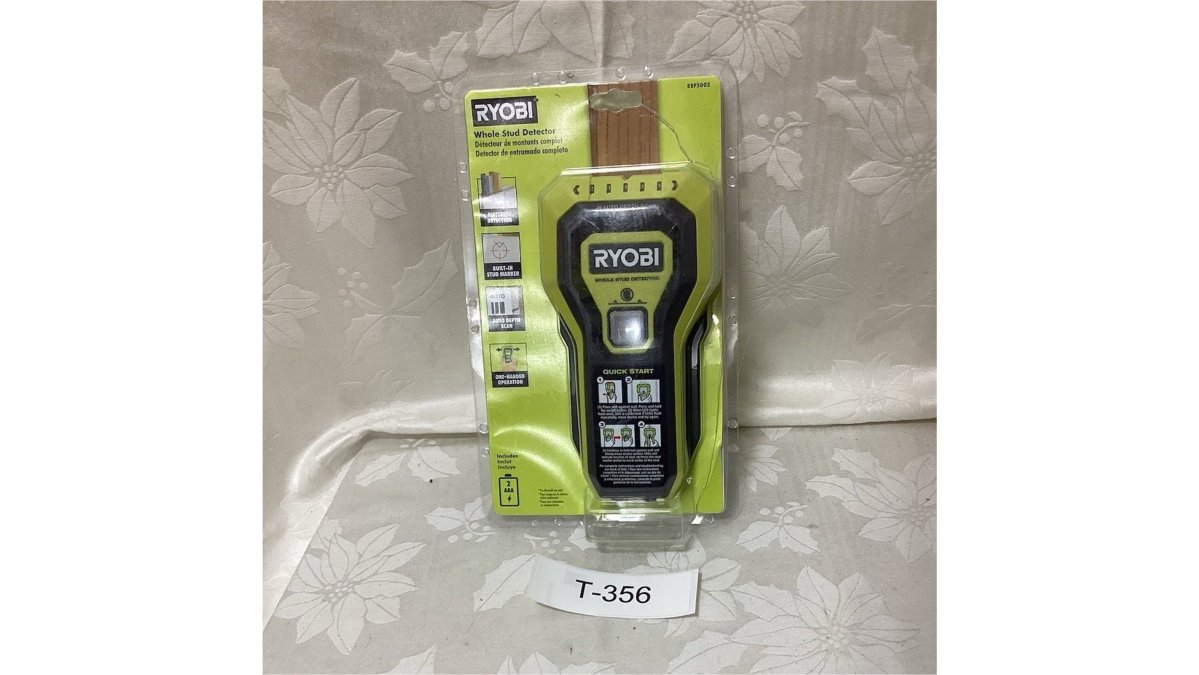
A stud finder matters more than people expect. If you're mounting a hub, a bridge, or a wall panel, you need to know where the studs sit. The RYOBI ESF5002 Stud Detector ($19.50) scans deep and marks stud locations with one hand, which makes it a smart first purchase for any wall-mounted project.

Smart Bulb vs Smart Switch Installation: Which Is Right for You?
Smart bulbs screw into your existing sockets. Smart switches replace the switch on your wall. That single difference decides which one you should buy.
Smart Bulbs: The Beginner-Friendly Option
Smart bulbs are the easiest entry point. You screw them in like any regular bulb, then pair them with an app. No wiring, no breaker panel, no risk. You can move them between rooms whenever you like.
The trade-off: if someone flips the wall switch off, the bulb loses power and stops responding. Many beginners hit this on day one.
Smart Switches: When You Need a Wall Plate Replacement
Smart switches control the fixture itself, so they work with any bulb. They suit rooms where you want the wall switch to keep working normally.
The catch is real: you're working with live electrical lines. If that makes you uneasy, hire an electrician. There's no shame in it.
| Option | Difficulty | Wiring Needed | Best For |
|---|---|---|---|
| Smart bulb | Easy | None | Renters, beginners, single rooms |
| Smart plug | Easy | None | Lamps, holiday lights |
| Smart switch | Moderate | Yes | Whole-room control, any bulb |
Hub Compatibility and Connectivity: What You Actually Need
A hub is a small device that connects your lights to each other and to the internet. Some bulbs need one. Many newer bulbs don't. The confusion is that "hub" means different things depending on which protocol your bulb uses, and most guides never explain the difference.
Here's the decision framework that actually matters:
If you're renting or testing the waters: buy Wi-Fi or Bluetooth bulbs. They connect straight to your router or phone. No hub, no extra box, no extra outlet.
If you're building a whole-home system: a hub-based protocol like Zigbee or Z-Wave gives you a more stable mesh network. Each bulb acts as a repeater, so the more lights you add, the stronger the signal gets. That's the opposite of Wi-Fi, where every added device competes for router bandwidth.
If you want to mix brands: look for the Matter label. Matter is the cross-brand standard maintained by the Connectivity Standards Alliance, and it's designed so a bulb from one brand can be controlled by a hub or app from another (Build With Matter). Without Matter, you're usually locked into one brand's ecosystem.
Check the box before you buy. Look for these labels:
- Wi-Fi: connects straight to your router, no hub needed, but each bulb uses router bandwidth
- Bluetooth: works close to your phone, limited range, fine for one lamp but not a whole room
- Zigbee or Z-Wave: needs a hub, but the mesh connection gets more stable as you add devices
- Matter: the newer standard that works across brands, often over Wi-Fi or Thread
- Thread: a low-power mesh protocol that requires a Thread border router, which some newer hubs and smart speakers include
This is the step most guides skip, and it's where buyers get burned. If you buy a Zigbee bulb without a hub, it simply won't work. The Connectivity Standards Alliance maintains the Matter standard, and it's worth checking whether any bulb you buy carries that label.
A common pattern among beginners: they buy three bulbs from three different brands, then discover each one needs its own app. Before you commit to a brand, ask one question, does this bulb work with the app I already have, or does it need its own?
RYOBI ESF5002 Stud Detector Stud Finder →
One more compatibility trap: your router's band. Most hubs and many bulbs only work on a 2.4GHz network. If your router broadcasts a single combined network name, some devices won't find it during setup. Splitting the bands into separate names is the fix, and we cover that in the Wi-Fi setup section below.
How to Connect Smart Lights to Wi-Fi Step by Step
Connecting smart lights to Wi-Fi takes about five minutes per bulb. Follow these steps in order and you'll avoid most setup headaches.
Step 1: Download the App and Create an Account
Install the app that matches your bulb brand. Create an account and verify your email. Do this before you touch the bulb.
Step 2: Put Your Lights in Pairing Mode
Screw in the bulb and switch the power on. Most bulbs blink or pulse when they're ready to pair. If yours doesn't, check the manual for the reset sequence, usually a few quick power cycles.
Step 3: Connect to Your 2.4GHz Network
This step trips up more people than any other. Most smart bulbs only work on a 2.4GHz Wi-Fi band, not 5GHz.
Safety and Electrical Basics for DIY Smart Lighting
Smart bulbs and plugs carry no shock risk. You're screwing in a bulb, not touching a wire. Smart switches are different.
Before you open any switch plate:
- Turn off the breaker for that circuit
- Test the wires with a voltage tester to confirm the power is off
- Never assume the switch controls the only live wire in the box
Troubleshooting Smart Light Connection Issues
Most connection problems trace back to three causes: the wrong Wi-Fi band, weak signal, or a firmware update that didn't finish. Work through them in that order.
Try these fixes:
- Move your router closer, or add a mesh node near the light
- Reboot the router, then re-pair the bulb
- Delete the bulb from the app and start fresh
- Update the app and the bulb's firmware
- Check that your phone isn't on a VPN during pairing
Voice Control and Automation: Getting More from Your Setup
Here's how the three major ecosystems handle it:
Amazon Alexa: Open the Alexa app, tap Devices, then Plus (+), then Add Device. Choose Light, then pick your bulb brand from the list. You'll be asked to sign in with your lighting account. Alexa then imports every light already set up in that brand's app.
Budgeting for Beginners: What Smart Lighting Really Costs
Start with one room, not the whole house. A single smart bulb costs far less than a full retrofit, and it lets you learn the app before you commit.
A sensible beginner budget breaks down like this:
- One smart bulb to test the waters
- A plug-in dimming kit for lamps you already own
- A stud finder if you'll mount anything
- A power strip to keep your hub and router tidy
Frequently Asked Questions
Do I need a hub to install smart lighting?
Not always. Many smart bulbs connect directly to your Wi-Fi network and are controlled through a mobile application without a hub. However, some systems, like certain Zigbee or Z-Wave lights, require a hub to bridge the connection. Check the product packaging or listing before buying. If you want the simplest setup, choose Wi-Fi bulbs that work with your existing router and skip the extra hardware.

What are the downsides of smart lighting?
Smart lighting can be more expensive upfront than standard bulbs, and some systems depend on a stable Wi-Fi connection. If your internet goes down, app and voice control may stop working until the connection returns. A few users also find the initial setup confusing, especially if they mix brands. Sticking to one ecosystem and using a 2.4GHz network reduces most of these headaches.
Do smart lights raise the electric bill?
Smart LED bulbs use far less energy than traditional incandescent bulbs, so replacing old bulbs with smart LEDs typically lowers your energy bills. The added cost comes from the smart features, like the small amount of power used when the light is in standby mode. Scheduling and motion detection can cut waste by turning lights off when no one is in the room, which offsets that standby draw.
What is the difference between a smart bulb and a smart switch?
A smart bulb replaces your existing bulb and is controlled individually through an app, voice assistant, or automation. A smart switch replaces the wall switch and controls the entire fixture, so you can use regular bulbs. Smart bulbs are easier for beginners because no wiring is needed. Smart switches require basic electrical work and are better if you want to keep your existing bulbs or control multiple lights from one point.